Billing
Guide on Billings page
Accessing Billing Page
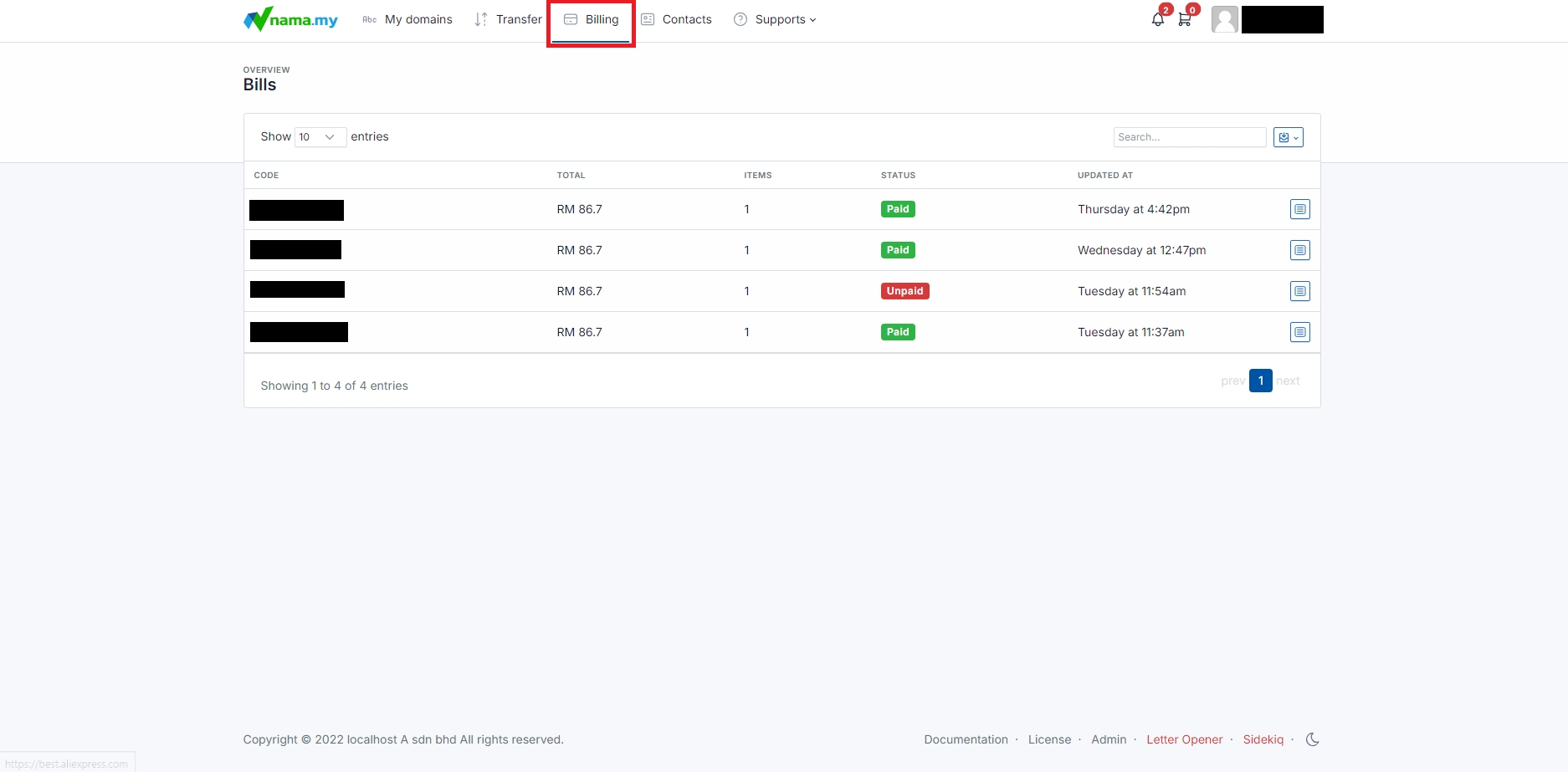
Navigate to Billing Page: Click "Billing" on the top navigation bar.
Bills Details
Access specific Bills: Click
 icon to view full details on the specific bill that you selected.

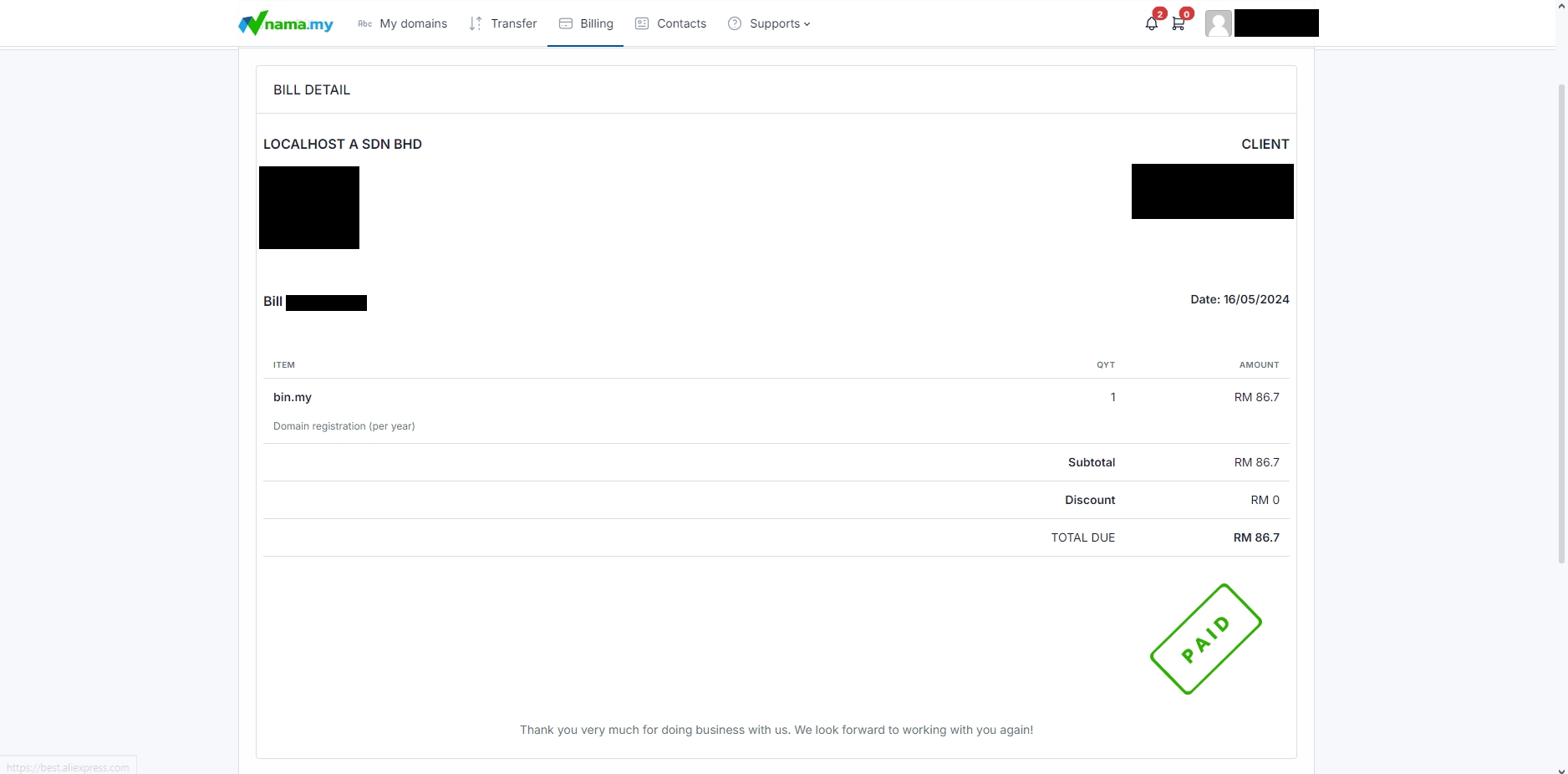
View Bills details: You will be able to view full details of bill on the domain that you buy. If you already paid your domain, it will show as paid.
Unpaid Bills
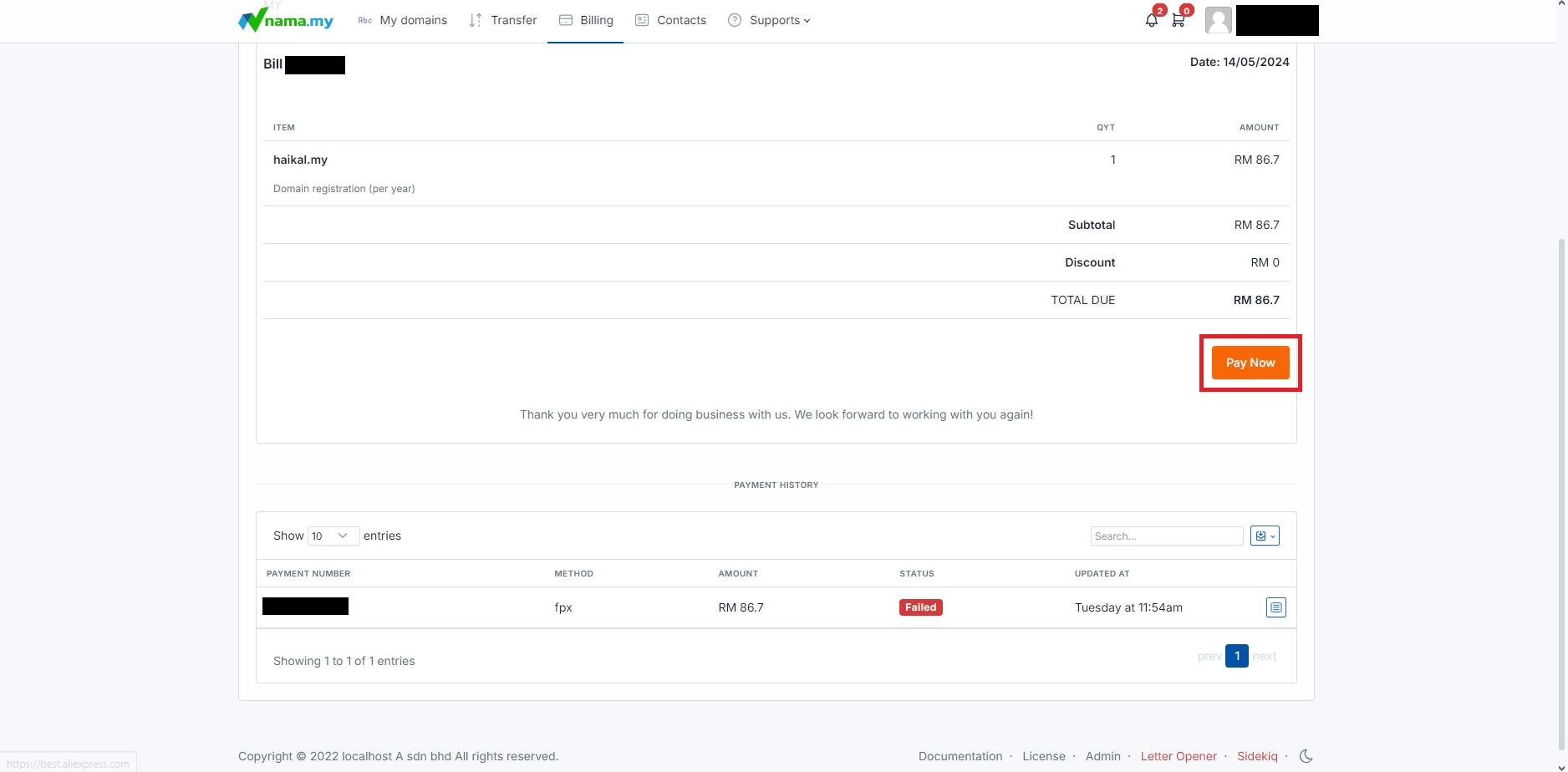
Pay unpaid Bill: If there are bills that status as unpaid, you can pay by clicking the
icon. After that, click "Pay Now" button to proceed on payment.
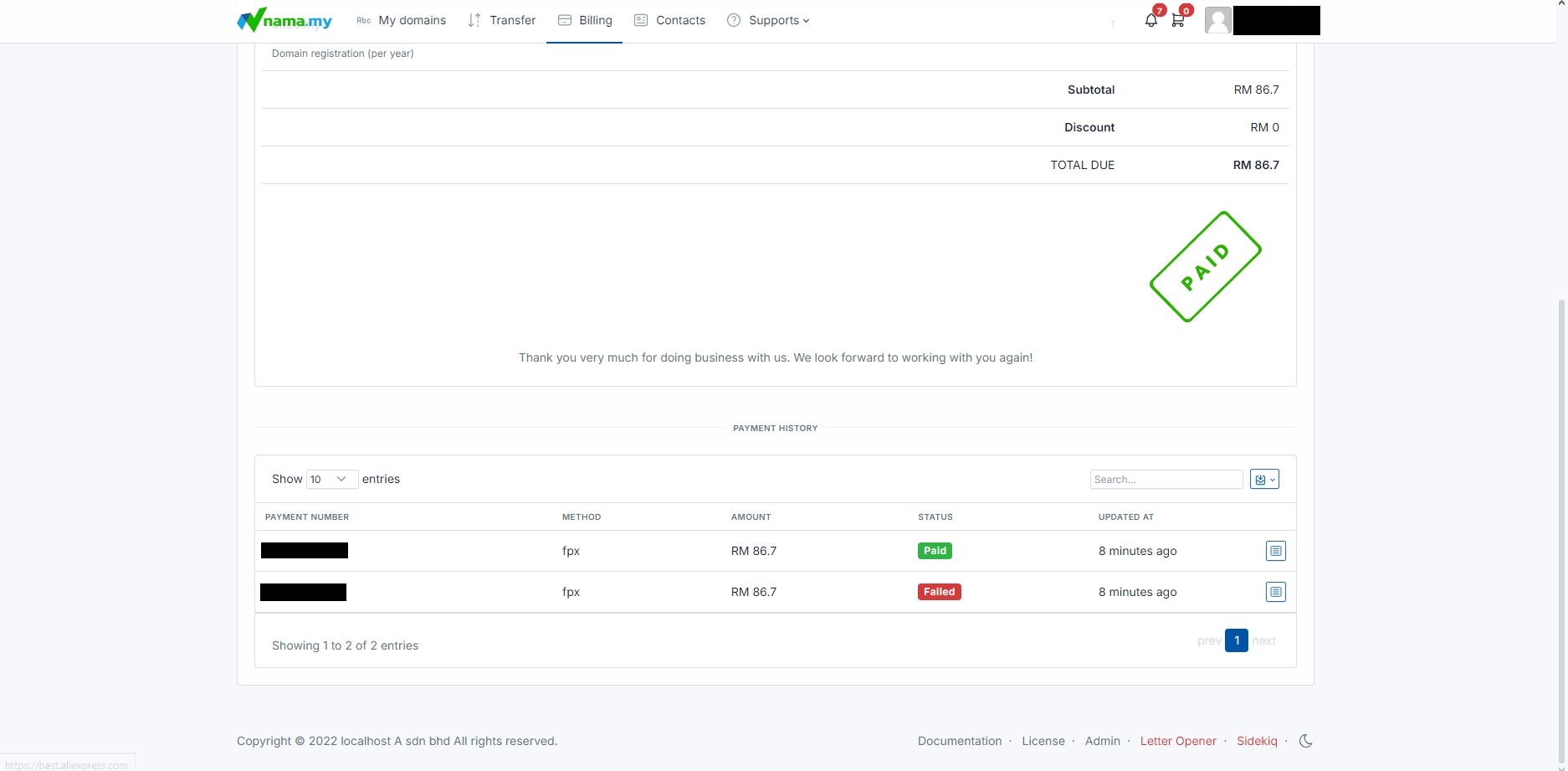
Payment Status: If you scroll down the page, you may see whether your payment has succeeded or not inside the payment history table.