Registration
Guide on user registration
Accessing the Registration Page
1. Open Your Browser
2. Go to the Website: Type our website URL (https://registrar.nama.my) into the address bar and press Enter.
3. Navigate to the Registration Page: On the homepage, locate the user dropdown menu by clicking on the profile icon in the top right corner of the page. Then, click "Sign Up" from the dropdown menu.

Registration Methods
Currently, there are 2 methods in account registration:
Sign up with email
Sign up with Google
Sign Up with Email
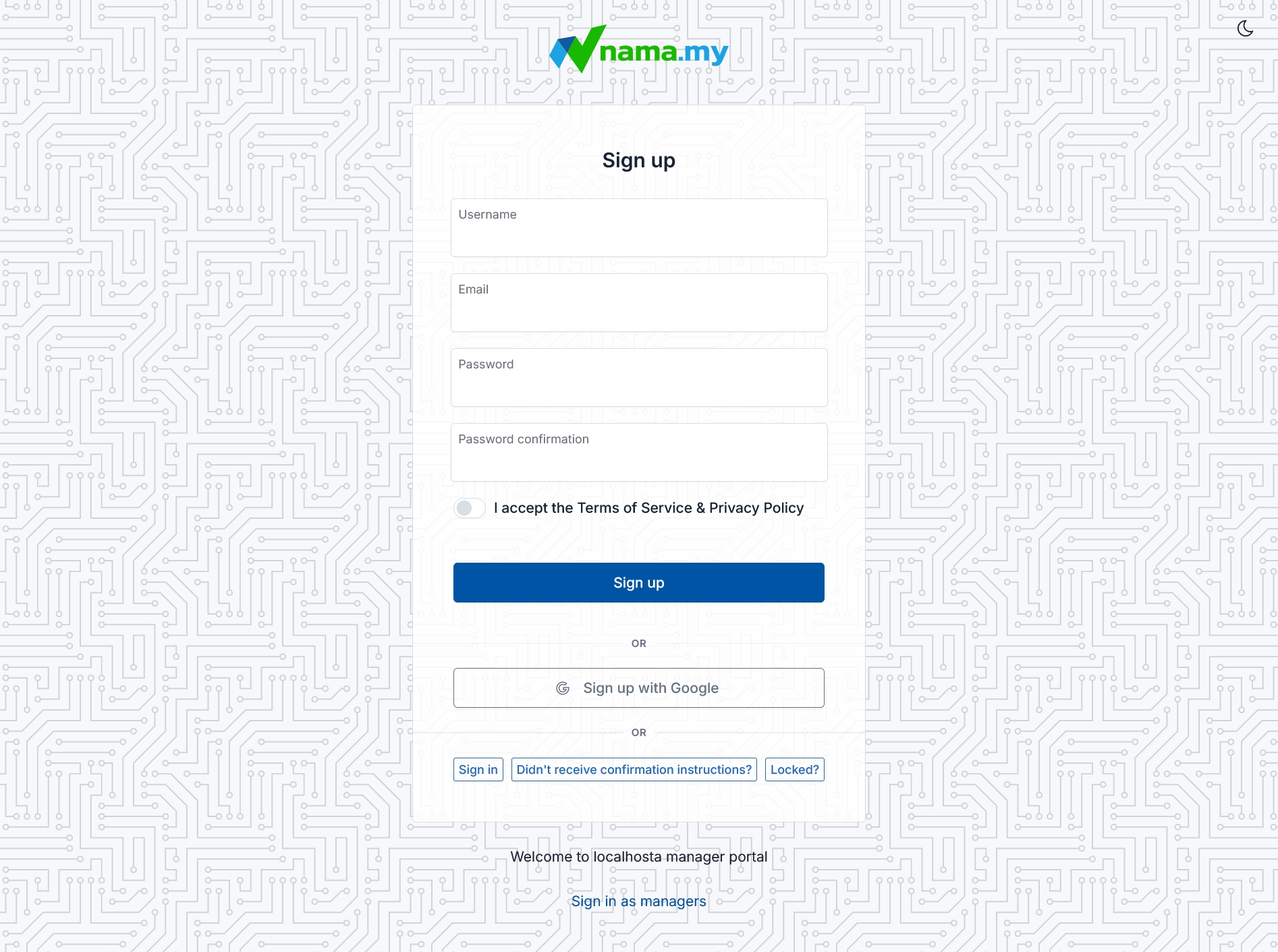
In the sign-up form,
Username: Enter your preferred username.
Email: Enter your email address. The email address must be one you haven't used for user account registration in nama.my.
Password: Enter a password with ()
Password Confirmation: Re-enter your password.
Submit: Click the "Sign up" button to proceed.
Sign Up with Google
Sign up with Google: Click the "Sign up with Google" button at the bottom of the sign-up form.
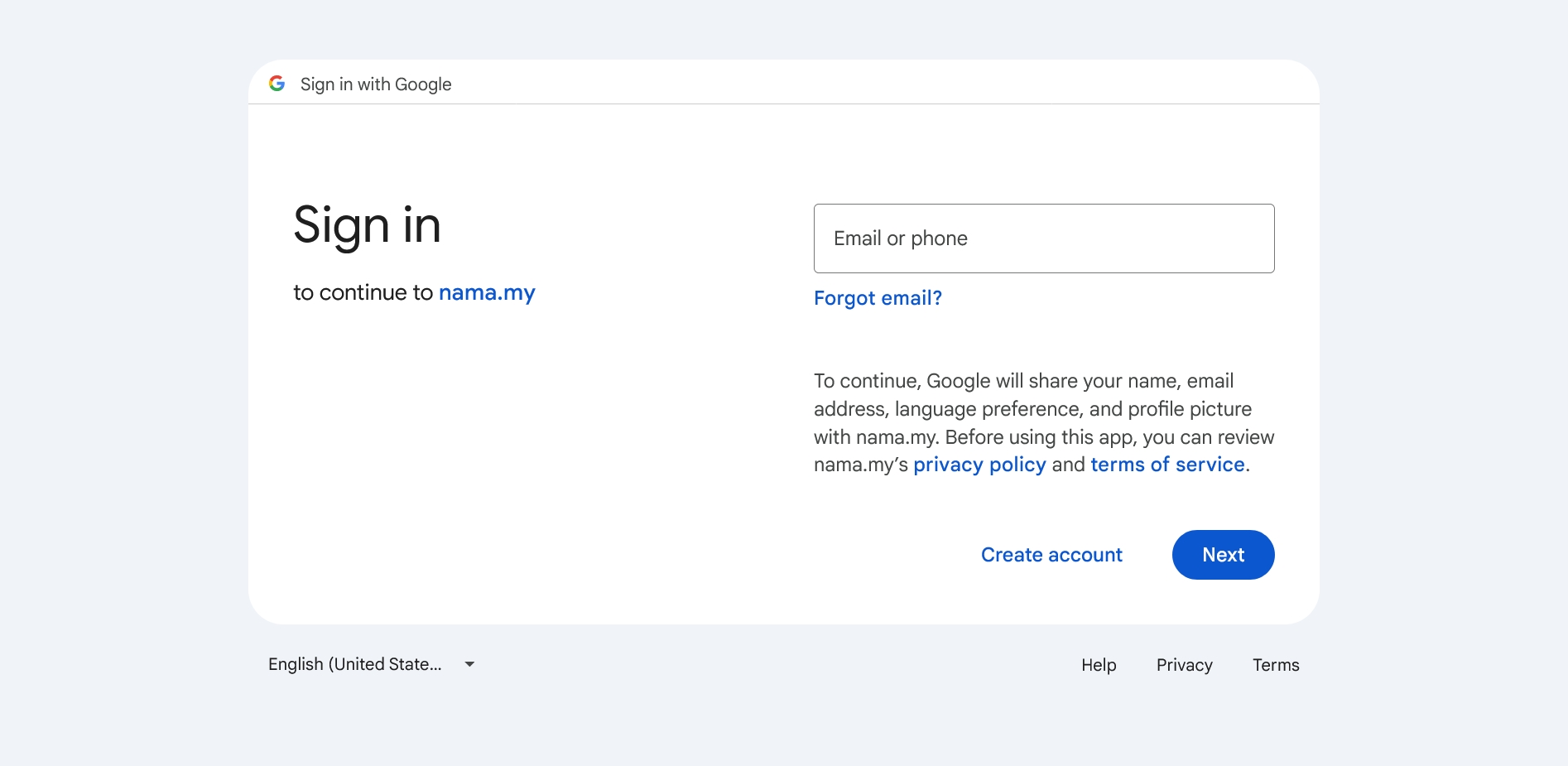
Sign in into Google: Enter your Google account credentials and sign in into your Google account to continue to nama.my.
User Onboarding
After account registration, it will bring you to the user onboarding. The user onboarding has 4 steps:
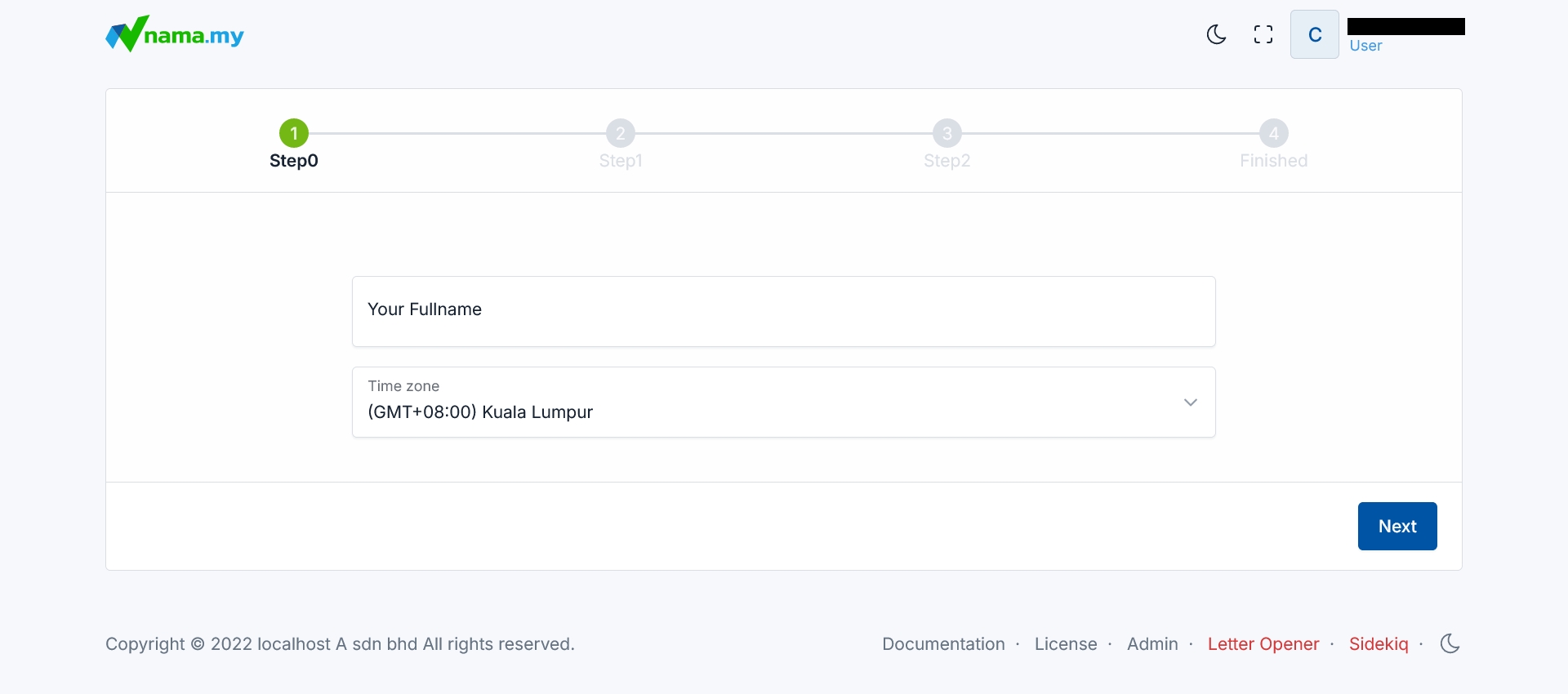
In the user information form,
Full name: Enter your full name.
Time zone: Enter your current time zone.
Next: Click the Next button to continue.
Two-factors Authentication (2FA)
Token secret: Scan the QR code, or enter the provisioning code manually using your preferred authenticator application.
OTP token: Enter the generated OTP token on your authenticator application into the 6-digit field.
Next: Click the Next button to continue.


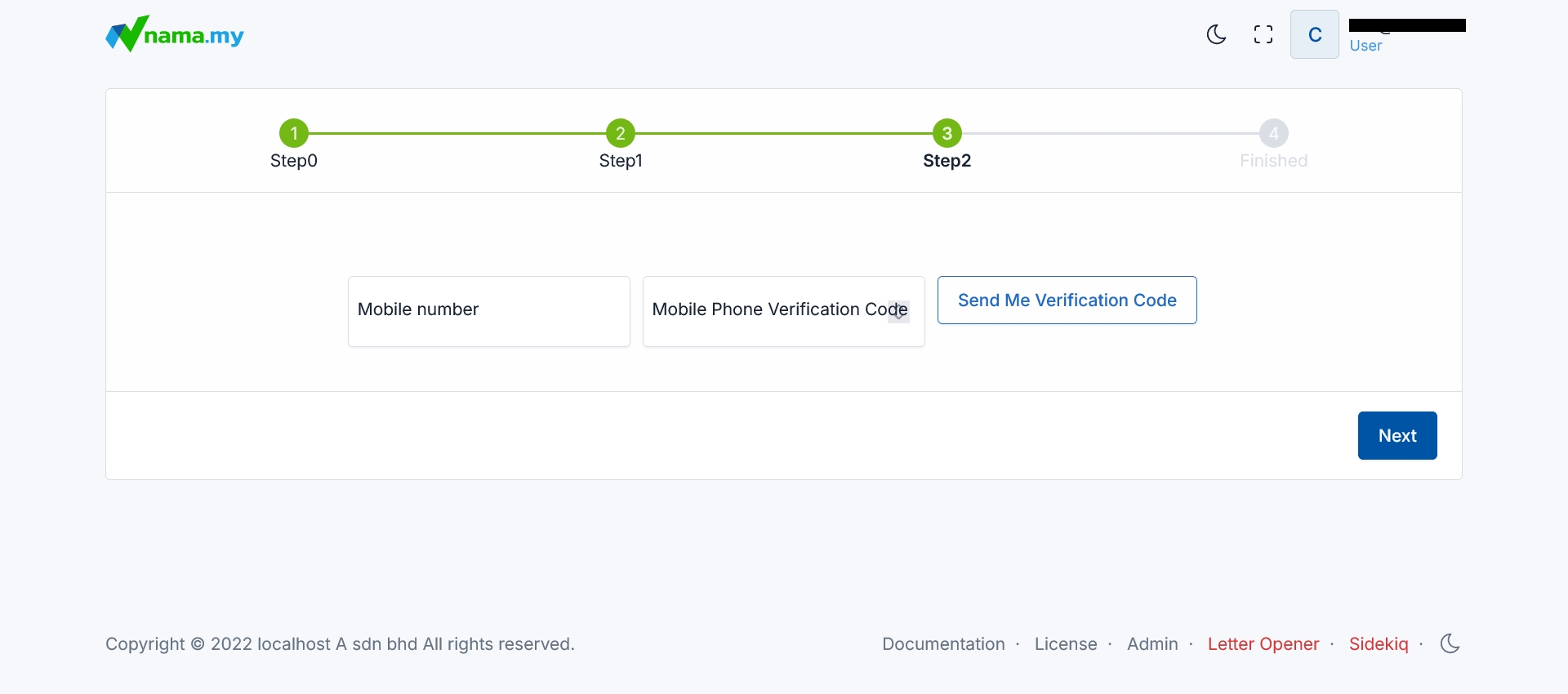
Mobile Phone Verification
Mobile number: Enter your current phone number.
Sending the Verification Code: Click the "Send Me Verification Code" button to receive the verification code.
Receiving the Verification Code: You will receive an SMS containing the verification code on your mobile phone.
Entering the Verification Code: Enter the received code into the designated field.
Next: Click the Next button to continue.
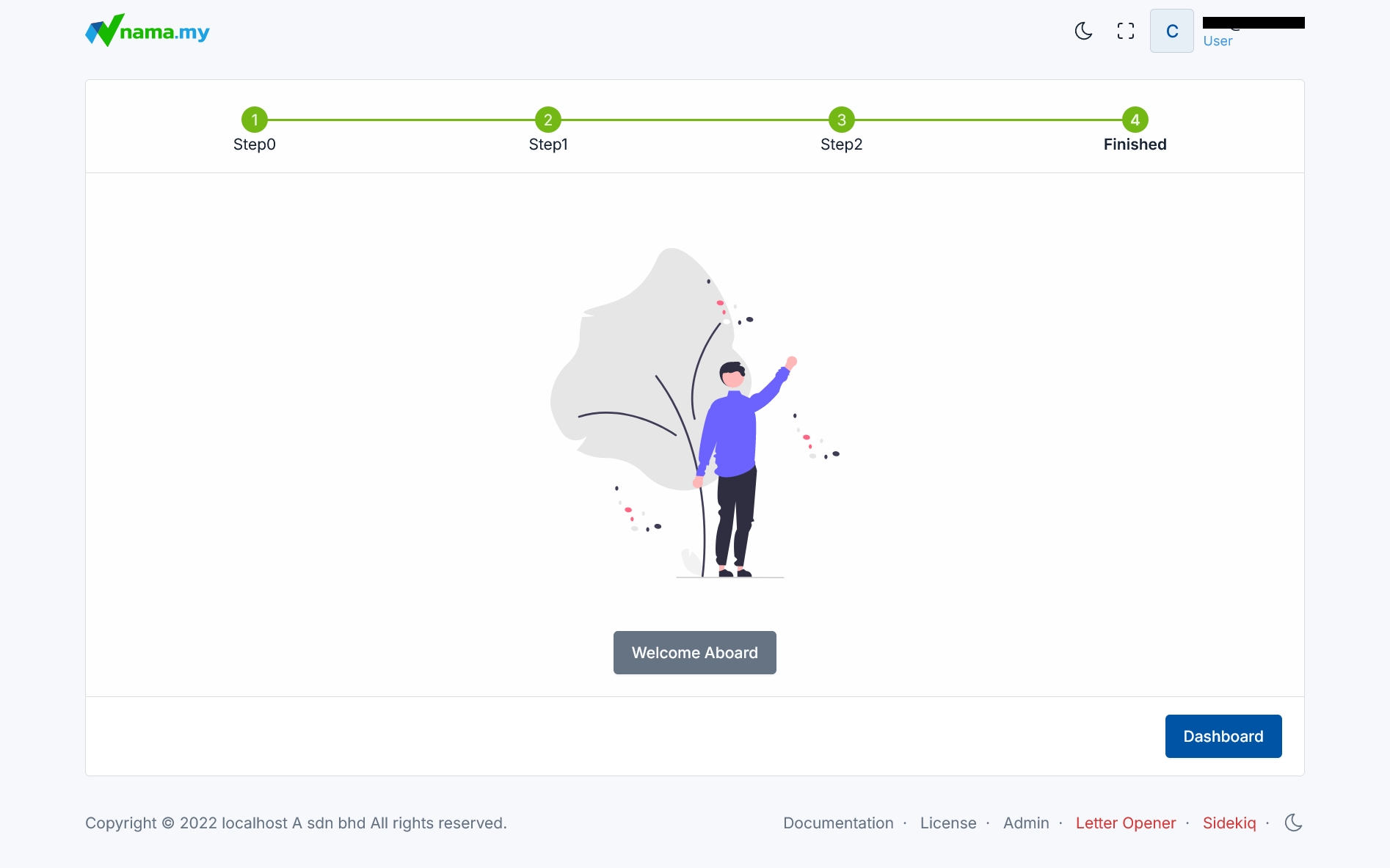
Finished: Click the "Welcome Aboard" or "Dashboard" button to start using our platform.